MCP Project Management: How AI Agents Work on Your Board
MCP project management explained: how Claude agents claim tasks, follow permission limits and hand off work safely, with practical workflows.
Your team has a project board full of active deliverables, a chat channel that moved faster than anyone could follow, and an AI assistant open in another browser tab. Halfway through the weekly status meeting, someone asks a fair question: can we just connect the assistant straight to the board so it updates tasks and clears out the routine admin?
That question is the exact point where MCP project management stops sounding like a developer buzzword and becomes an operational call. Connecting an AI agent to your work isn't hard anymore. Deciding what that agent should read, what it should never touch, and which person stays accountable for every edit is where work stalls or gets burned.
You don't need an engineering background to make that call well. You need one clear permission model, one step-by-step autonomy ladder, and a rule that ties every automated action back to a named person on your team.
What MCP Lets an Agent Do on Your Board
The Model Context Protocol (MCP) is an open standard introduced by Anthropic on November 25, 2024, that lets an AI assistant read live context from a project tool and, where authorized, take action through that tool. Anthropic's creators, David Soria Parra and Justin Spahr-Summers, designed it as a two-way connection so an assistant isn't trapped inside a single chat box or tied to one vendor's database. Think of it as a standard plug between your assistant and your board rather than a custom wire built for every app.
In practice, Claude connects over MCP today from Claude Code, claude.ai, and Claude Desktop, each acting on behalf of a named team member. If you want the underlying mechanics of how clients and servers talk to each other, read our guide to the Model Context Protocol. For a project lead, though, the protocol itself isn't the hard part.
Reading a Board Versus Changing It
The single biggest misconception in MCP project management is treating a connection as a blanket permission. Giving an agent a plug into your workspace doesn't mean it can edit anything. Reading a project board and writing changes back to that board are two separate grants, and you should always configure them separately.
Say a design lead opens Claude on Tuesday morning and asks which campaign assets are blocked this week. Because the connection has read access to that project, Claude pulls the live task list, scans the attached creative briefs, and replies that two landing-page mockups are waiting on legal copy while a third has no assigned owner. It answers in seconds without anyone building a custom report.
Now suppose the design lead asks Claude to push those two deadlines out by three days and assign the third task to a copywriter. Claude can only execute those changes if the connection also holds a write grant for that specific project. Without it, the agent drafts the suggested updates in chat and leaves the board untouched until a person approves or edits it directly.
Before you approve any MCP connection on a live workspace, get clear answers to three operational questions:
- Which boards can the agent see? Scope visibility to the specific projects the person works on, not every client folder or HR pipeline in the company.
- Which changes can it make? Separate read-only queries from status updates, task creation, and destructive edits like deletions.
- Which person does it act for? Every agent session should inherit the permissions and accountability of one named team member, never an anonymous shared admin account.
Common Workflows Agents Run Through MCP
Once a team understands the split between reading and acting, the next question is what an agent should do on a Tuesday afternoon. Most useful work falls into six everyday patterns where the assistant handles drafting, sorting, and recording while a human stays in charge of judgment.
The short video below walks through how an AI assistant operates directly inside a shared workspace alongside people.

Plays from YouTube. Pressing play loads it from Google.
The table below lays out six common workflows an MCP-connected agent can run and shows where the human decision stays.
| Workflow | What the agent does | What a person still decides |
|---|---|---|
| Turn a meeting note into tasks | Creates tasks with owners, due dates and links to the source note | Confirms owners and priority |
| Catch up on a channel | Summarises the day's messages, decisions and open questions | Decides which items need action |
| Read a file for key facts | Reads an uploaded contract or brief and lists the key facts and the questions it answers | Decides what those facts mean for the project |
| Run a repeatable process | Works through each step of a saved workflow for every row in a list | Approves the steps marked as checks |
| Update statuses after a release | Moves finished items to Done and logs each change | Signs off the release |
| Write a handoff | Records what was done, what is blocked and what comes next | Reads the handoff and picks the next task |
Where the Human Job Starts
Notice the consistent boundary across all six rows. The agent takes over the repetitive drafting, sorting, and recordkeeping that usually falls behind during busy weeks. The project owner still sets priority, accepts finished outputs, and signs off on anything that leaves the team or reaches a client.
Document handling shows why that split works so well. When someone uploads a vendor contract, a construction spec, or a creative brief, an AI-enabled workspace reads the file on arrival to generate a summary, pull out key facts, and list the exact questions the document answers. That makes words inside PDFs and docs searchable and gives the agent grounded facts to cite, while the manager decides whether a payment clause or delivery date changes the schedule.
Repeatable workflows are where hours come back. Drop in a screen recording, link, or SOP document of how your team handles client onboarding or a hiring intake, and it becomes a step-by-step workflow with built-in approval checks. The agent can run that workflow once for a single request or repeat it across fifty rows in a list, though a person should inspect the first few runs closely to confirm every field and check lands where it should.
A workflow is ready for an agent only when its steps are written down, its human approval checks are named, and one owner is accountable for the result.
How an Agent Claims, Works and Hands Off a Task
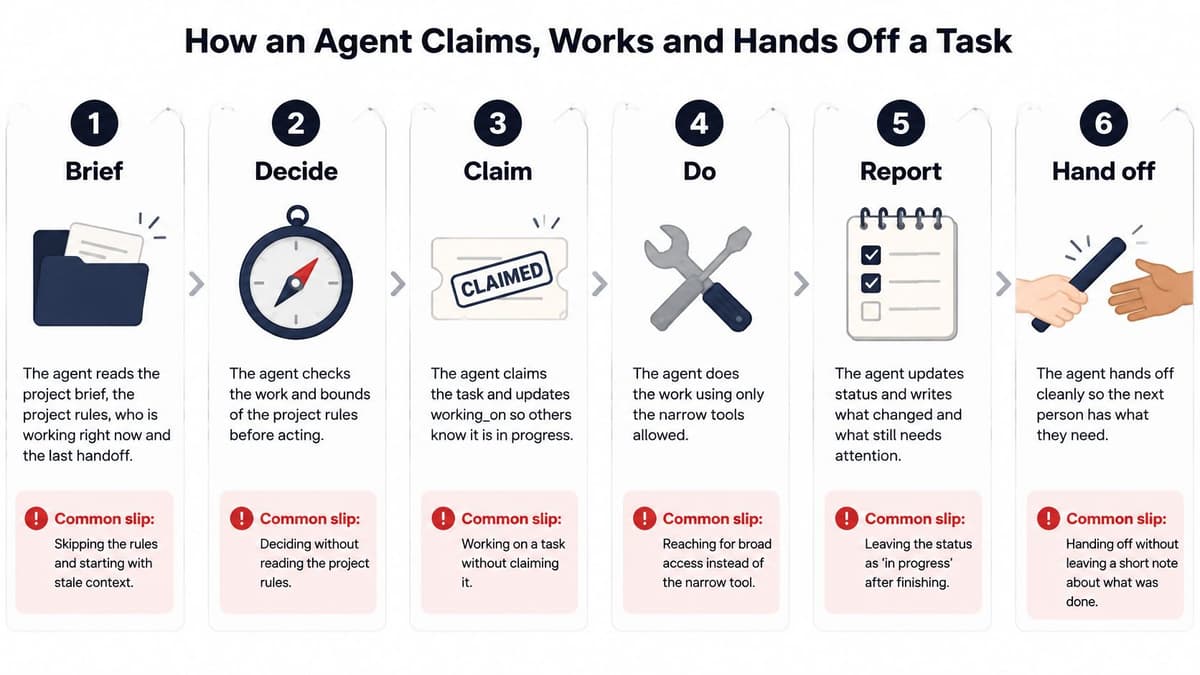
Giving an agent access to a board without rules for how it picks up work creates fast chaos. Two sessions grab the same item, an agent edits a task using last week's assumptions, or a job finishes with no note explaining what changed. A disciplined task lifecycle prevents those failures by forcing every session through the same six-step routine.
The Six-Step Task Lifecycle
Whether your team runs one assistant or coordinates several sessions through multi-agent coordination patterns, every run should follow these six stages in order.
- Read context before editing. Before an agent edits a single field, it reads the project rules, who is working right now, and the last handoff note. Skipping this step is the main reason agents redo work someone already finished yesterday or violate a client constraint.
- Claim one task with a timed lease. Every session pulls from one shared queue and claims a single task with a 30-minute lease, marking it active so a second agent doesn't start the same job. The common slip here is a claim that never expires or gets released when a session drops, which locks the task and stalls everyone else.
- Check scope and route choices to a person. If a task hides an unresolved trade-off, such as choosing between two vendors or shifting a launch date, the agent posts the question in Needs you and pauses instead of guessing. Teams run into trouble when they skip this check and let agents invent priorities on a vague ticket.
- Work through narrow, signed tools. The agent carries out edits using only the permitted tools on that project, and every change is signed "Claude for " (for instance, "Claude for Elena"). Unsigned bot edits break accountability because nobody can tell who triggered a change or why it happened.
- Pause before risky steps. Deletions, messages going to outside clients or candidates, and permission changes always wait for explicit human approval. A common mistake is assuming that a grant for routine status moves also covers irreversible actions like deleting an archived folder or emailing a customer.
- Write a structured handoff. Before closing out, the agent records what it completed, what's still blocked, which decisions it relied on, and the exact next step. Ending a run with a blank note or a one-word "done" leaves the next teammate digging through activity logs to figure out where to start.
What a Finished Run Looks Like
Visible state and clear handoffs matter even more than raw speed. An ACM study comparing agent-authored and human-authored pull requests found that human intervention occurred in 52.17% of agent-authored pull requests compared with 83.59% of human-authored ones, yet when people did intervene on agent work, the review demanded heavier effort, larger churn, and more time. That pattern holds outside engineering too: agents reduce routine check-ins, which makes the moments a person must step in much higher stakes.
A clean finish therefore leaves three concrete artifacts on the card. The task carries its updated status, a short handoff note explains the current state and next action, and the activity log names both the agent and the person it acted for. If any of those three pieces is missing, the workflow needs tightening before you add more tasks to the queue.
Designing Safe Permissions and an Audit Trail
Most security mistakes with AI boards start with a lazy shortcut: giving an assistant broad, unrestricted access to the underlying database so it can "figure things out." The safer design is a capability-controlled tool layer where the agent only sees narrowly scoped operations and every write passes server-side checks.
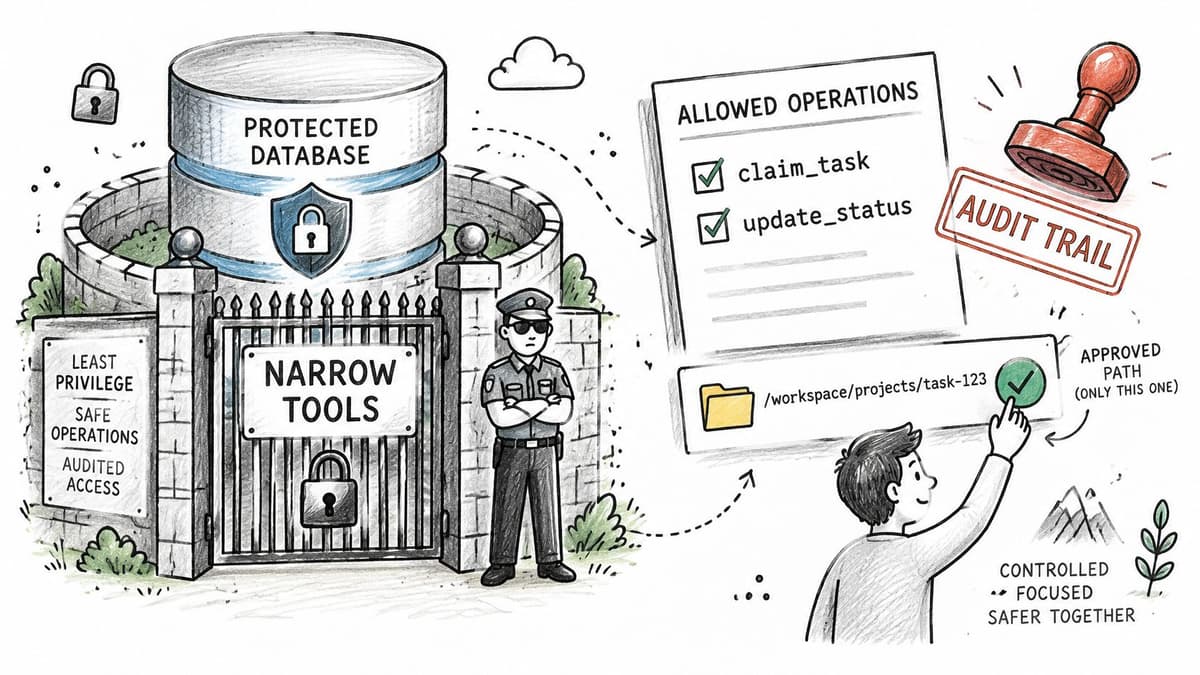
The Model Context Protocol specification treats tools as arbitrary code execution, requires explicit user understanding and consent for data access and operations, and mandates input validation and authorization checks on every stateful tool call. Translating that standard into a project board means exposing specific, single-purpose tools instead of a generic write endpoint:
claim_task: Reserves one work item for one agent session so two workers can't overwrite each other.update_status: Moves an item strictly along an allowed status path rather than letting an agent jump straight from intake to approved.request_approval: Halts a sensitive action and routes the exact context to a named approver.create_handoff: Appends a structured summary and next step to close out the run cleanly.
On every stateful call, the server should validate six things before writing a byte: the workspace, the project, the specific item, the authenticated acting identity, whether the requested status transition is permitted, and the item's current version. That creates a firm safety boundary. If an agent acts on stale context or gets tricked by a bad prompt, the server rejects the mutation before project data changes.
Threats Hiding Inside Everyday Project Data
Teams often assume threats only arrive from outside hackers. With MCP, ordinary project content is part of the attack surface. A task description pasted from a client email, an uploaded PDF, or even a third-party server's tool description can contain hidden instructions designed to steer the agent into leaking files or changing permissions.
Security researchers call these attacks tool poisoning, indirect prompt injection, cross-server shadowing, and post-approval descriptor changes, where a server alters what a tool claims to do after you already approved it. One empirical MCP security study on arXiv reported that 5 of 7 evaluated MCP clients lacked static validation of server-provided metadata. In plain terms, most clients won't automatically catch a server rewriting its own instructions behind your back.
Protecting a live board requires four practical controls, which we cover in more depth in our MCP security best practices checklist:
- Verify tool identity and pin versions: Approve specific server manifests and block silent capability changes.
- Issue least-privilege tokens: Give each connection only the scopes needed for its assigned project, never workspace-wide admin keys.
- Scan returned content: Check tool outputs before the model acts on them to catch credential leaks, unauthorized redirects, or attempts to bypass approval states.
- Alert on schema drift: Trigger an immediate warning whenever a connected tool's parameters or descriptions change from the approved baseline.
What Belongs in an Append-Only Audit Trail
Prevention is half the job; proof is the other half. Every tool call should write to an append-only audit record that nobody, including the agent, can edit or erase after the fact.
Each log entry needs seven fields: the authenticated person, the delegated agent identity, the tool name, the validated arguments, the approval decision, a timestamp, and the item's before-and-after versions. That single record buys you three things non-technical managers care about: fast rollback when an automated batch goes sideways, clear incident investigation when a client questions a change, and verifiable evidence for regulated or client-facing work.
Readiness check: If you can't write down every tool an agent holds and the exact human approval each tool requires on one page, your MCP setup isn't ready for live work.
Autonomy Levels and Where Each One Breaks
Connecting an MCP server feels like a finish line, especially when the first demo works in five minutes. That's a dangerous assumption. In Stacklok's 2026 State of MCP in Software survey of 300 senior technical leaders, nearly half of software companies were already using MCP in production, 19% had reached broad production scale, and 49% classified adoption as a top-five company initiative, yet 64% named security concerns as the leading obstacle.
Teams aren't holding back because MCP is hard to wire up. They're holding back because nobody wants an unsupervised agent breaking live operations. The way past that bottleneck isn't turning everything on at once; it's climbing a four-rung autonomy ladder one level at a time, proving each rung works before earning the next.
| Level | What the agent may do | Entry criteria | Where it breaks |
|---|---|---|---|
| Read-only discovery | Reads tasks, files and the brief, and answers questions | Read access limited to the project | Answers from stale or partial context |
| Supervised updates | Changes statuses and drafts tasks, with a person reviewing each change | Every change is logged and a tested undo exists | Two agents claim the same work, or conflicting edits land |
| Bounded automation | Runs routine workflows on low-risk items without review | Reversible actions, tested rollback and an emergency stop | A partial run leaves items half updated |
| High-impact execution | Acts on deletions, permission changes or messages to outside people | A named approver, verified tool versions and continuous monitoring | Permissions inherited across chained tools go unnoticed |
Why Human Approval Alone Isn't a Safety Net
Every rung on that ladder fails in a predictable way if you rush past its entry criteria. At Level 1, an agent reading an outdated brief gives confident answers that mislead a client call. At Level 2, overlapping sessions without clean task claims overwrite each other's drafts. At Level 3, a workflow that stalls halfway through forty rows leaves half the board updated and half untouched, forcing a manager to audit every row by hand.
At Level 4, the quietest risk is permission sprawl across chained tools. An agent authorized to read a project board and post updates into a connected system can accidentally pull restricted files across a boundary nobody noticed when they approved each tool individually.
Many managers assume a "human-in-the-loop" button solves all four problems. It doesn't. A 2025 arXiv analysis of agentic MCP governance notes that human approval often serves as the primary, and sometimes single, defense against agentic risk, even though approval prompts alone can't solve workflow-level risk aggregation or stop a runaway chain in real time. Approvers get fatigued and click yes too fast. Safe operations pair human approval with reversible actions, rehearsed rollbacks, and a working emergency stop that halts active sessions immediately.
How to Climb From Supervised Updates to Bounded Automation
Moving up a rung should be a measured team decision, not a gut feeling. Say an operations manager wants to move an agency's intake board from supervised updates (Level 2) to bounded automation (Level 3).
For two full weeks, the agent drafts every status move and routine checklist update while the manager reviews each change before it sticks. The team tracks how often the agent misclassifies a task, verifies that every action lands cleanly in the log, and runs one live rollback test to confirm they can undo a batch of edits in under a minute. Only after two clean weeks and a verified emergency stop do they let routine moves on low-risk items run without manual sign-off, while keeping client emails and deletions locked behind approval.
Before your team opens any new permission level, run one simple test: can everyone on the project name which rung you're on today, which entry criteria you've verified, and exactly who pulls the stop switch if that level breaks?
Why Shared Context Is the Real Prize
If managing permissions and autonomy levels sounds like extra discipline, it helps to look at what's at stake when project coordination breaks down. Data from PMI's 2017 Pulse of the Profession report puts hard numbers on the divide between organizations that keep projects coordinated and those that don't.
| Measure | High performers | Low performers |
|---|---|---|
| Projects completed on time | 88% | 24% |
| Projects delivered within budget | 90% | 25% |
| Projects that achieved the intended business result | 92% | 33% |
| Projects with scope creep | 28% | 68% |
| Project failure rate | 6% | 24% |
| Average budget lost when a project fails | 14% | 46% |
Read those two columns as a story of two completely different workdays. High-performing teams finish almost nine out of ten projects on time and on budget while keeping scope creep below a third. Low-performing teams miss deadlines three-quarters of the time, struggle with scope creep on more than two-thirds of their work, and lose nearly half the budget whenever a project fails.
One important caveat belongs right next to those numbers: the PMI survey doesn't prove that MCP itself improves project outcomes. What it does is measure the size of the coordination gap that reliable shared context and accountable automation are built to narrow.
Context Beats Raw Sync
Projects rarely fail because nobody typed up a task list. They fail when decisions vanish into private messages, scope shifts without a record, and two people act on different versions of the truth.
Say two account managers move the same client deliverable deadline back on different days. One shifts it because the client hasn't signed off on photography; the other pushes it again because a developer got pulled onto an urgent bug. Without a shared context layer, the board just shows a late date, and next week's sponsor review turns into an argument over who dropped the ball. When an agent operates inside a board that logs the decision, its named owner, and the before-and-after history, the reasoning stays attached to the work.
That's also why MCP project management isn't the same as a standard two-way sync or a one-off API webhook. Syncing tasks between boards like Trello, Monday, or Azure DevOps keeps fields tidy across apps, which is useful when teams live in different tools. A raw sync, however, only copies column values from one database to another; it doesn't read an attached contract, check project rules before making a move, ask a person when scope gets murky, or leave an approval trail explaining why a date changed.
Can a new teammate open your project board and figure out within five minutes what was decided and why?
If the answer is no, adding faster automation won't fix the board. Fixing shared context first turns every agent you connect later into a reliable contributor instead of a faster source of noise.
Start With One Read-Only Workflow
You don't need to redesign your entire company's operations to test MCP safely. Start small, keep write access switched off, and let the agent earn trust on real work before you hand it any edit rights.
- Choose one active project and one named owner. Pick a single board with steady weekly activity and choose one read-only workflow, such as compiling a Friday status summary or answering team questions from an uploaded client brief.
- Connect Claude to the workspace over MCP. Connecting Claude Code, claude.ai, or Claude Desktop takes about a minute using a single command or connector, with the session linked directly to that named person.
- Write the brief and the project rules first. Put the project goal, current priorities, and off-limits actions at the top of the workspace so the agent reads the same boundaries every time a session starts.
- Test on a small handful of items. Run the workflow across five or ten real tasks and read every output line by line to see where the agent nails the facts and where your brief left gaps.
- Check the handoff and audit trail on every run. Confirm that each session leaves a readable summary, names any open blockers, and records both the acting person and the delegated agent cleanly.
- Wait two clean weeks before adding supervised updates. Hold the connection at Level 1 until you see two straight weeks of accurate reads, then turn on supervised write access with logged edits and a tested undo.
What a Low-Risk Trial Costs
Running that two-week read-only pilot shouldn't require a budget fight or a procurement cycle. Every new Projectify workspace starts with a full month of Premium free, with no credit card required, and you can browse real Projectify workflow examples to pick your first template.
Once the trial month ends, the Free plan stays free forever for up to 1,000 items, while Premium is $8 a seat a month or priced at launch with no item limit (you can review all plan details on Projectify pricing). Just as important for teams testing MCP: agents never take a paid seat, so adding Claude to a workflow doesn't multiply your software bill.
Make the first permission call deliberately. Start with reads, verify the brief and the audit log, and grant each higher level of autonomy only after your team has proved the current one holds.
Projectify brings people and their Claude agents into one workspace built for any kind of project, with briefed sessions, 30-minute task claims, Needs you approvals, and handoffs signed with the person each agent works for. Start a month of Premium free with no card required, connect Claude over MCP in about a minute, and test your first read-only workflow at Projectify.